
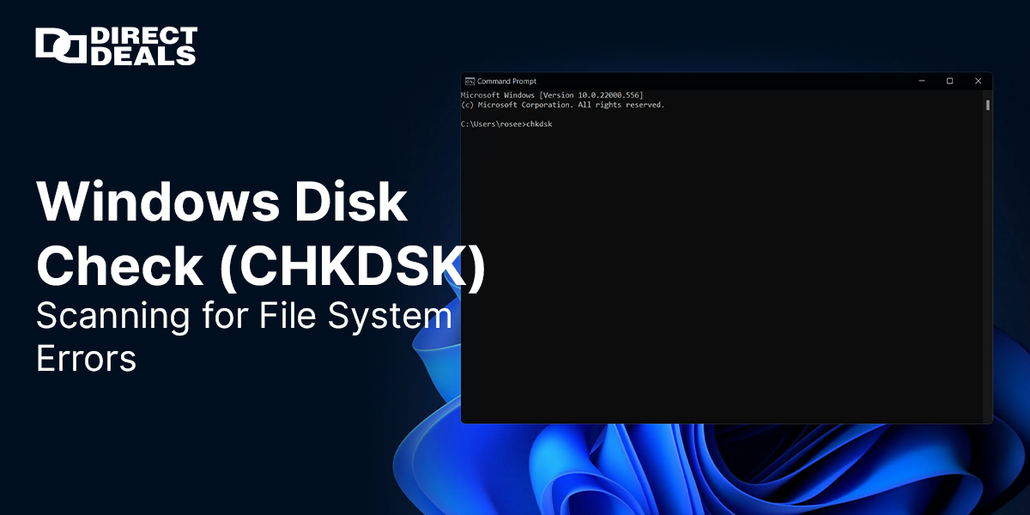
Windows Disk Check (CHKDSK) Scanning for File System Errors
January 19, 2026
How Do I Recover a Corrupted File System? A Practical Guide for Windows Users
Few things are more alarming than trying to access your files only to be met with an error: “Drive is not accessible” or “File system is corrupted.” Whether you’re dealing with essential documents, media files, or business software, a corrupted file system can disrupt productivity and cause unnecessary panic.
Fortunately, file system corruption doesn’t always mean your data is lost. With the right tools, knowledge, and support from trusted software providers like DirectDeals, you can recover quickly and get back on track.
With over 26 years of industry experience, DirectDeals is the go to for businesses and individuals looking for reliable software solutions, including operating systems, backup tools, recovery utilities, and genuine Microsoft Office products.
What Is a Corrupted File System?
A corrupted file system means your computer can no longer understand how data is stored or structured on a disk or partition. This often leads to inaccessible files, slow performance, or total drive failure.
Common causes of file system corruption include:
- Sudden power loss or improper shutdowns
- Malware or virus attacks
- Hardware failures (like a failing hard drive)
- Interrupted read/write processes
- Bad sectors on the disk
How to Identify File System Corruption
Symptoms can vary depending on the severity, but watch for:
- Drive or partition becomes inaccessible
- Frequent prompts to format the drive
- Files becoming unreadable or disappearing
- System crashes or the "blue screen of death" (BSOD)
- Disk check (CHKDSK) launching on boot repeatedly
Steps to Recover a Corrupted File System
Step 1: Don’t Format the Drive Immediately
If you’re prompted to format a drive, stop and do not proceed. Formatting can erase recoverable data. Your first goal is to recover files, not wipe them out.
Step 2: Run CHKDSK (Check Disk)
Windows comes with a built in tool called CHKDSK that can fix logical file system errors.
Steps:
- Open Command Prompt as Administrator
- Type: chkdsk X: /f /r (replace “X” with the affected drive letter)
- Press Enter and allow the system to complete the scan
CHKDSK will attempt to repair corrupt sectors and retrieve readable data.
Step 3: Use SFC and DISM Tools
The System File Checker (SFC) and Deployment Imaging Service and Management Tool (DISM) can fix corruption in system files.
- Run SFC: sfc /scannow
- Run DISM: DISM /Online /Cleanup Image /RestoreHealth
Both commands should be executed in Command Prompt (Admin mode) and may take several minutes to complete.
Step 4: Try Recovery Software
If the drive is still inaccessible, use trusted third party recovery tools. Some popular options include:
- Recuva
- EaseUS Data Recovery Wizard
- Stellar Data Recovery
Be cautious to download only from official sites or like DirectDeals, where licensing is guaranteed.
Step 5: Backup and Reformat (Last Resort)
If recovery is successful and your data is intact, back everything up. You may then format the drive to repair deep-level corruption and restore proper function.
How DirectDeals Can Help
At DirectDeals, we understand how critical your data and systems are. That’s why we offer more than just software—we provide solutions.
Here’s what you’ll find in our catalog:
- Windows Operating Systems (10, 11, Server editions)
- Microsoft Office Suites (2019, 2021, 365)
- Backup and Recovery Tools (Acronis, Norton, McAfee)
- Security Software to prevent future threats
- Networking and productivity tools
- Remote assistance and consultation
Whether you’re recovering from a file system error or protecting against one, we have the software and expertise you can count on.
My Experience with File System Recovery
I recently assisted a freelance video editor who lost access to a crucial external drive after a power outage. The drive stored all project files and was prompting for a format. Instead of panicking, we turned to DirectDeals for a reliable data recovery utility and Windows OS reinstallation.
Using a combination of CHKDSK and a third party recovery tool sourced from DirectDeals, we retrieved nearly 98% of the original files. The client later upgraded to Windows 11 Pro and added Microsoft Office 2021 Professional Plus—also through DirectDeals.
What could have been a disaster turned into a seamless recovery process, thanks to the right tools and guidance.
Final Thoughts
A corrupted file system doesn't have to mean lost data or downtime. By understanding how to respond, using built-in recovery tools, and trusting reputable sources like DirectDeals, you can bounce back stronger—and better prepared for the future.
Learn more at:
Prefer to talk? Call us directly:
(800) 983-2471
Need technical support? Email:
support@directdeals.com
Don’t let a corrupted file system slow you down. Explore genuine recovery solutions, Microsoft software, and system tools at DirectDeals—the technology trusted by businesses for over 26 years.